DashCam app icon

Use the phone you already own
as a dash cam.

DashCam loop-records your drive, keeps the clip that matters, and burns the time, speed and GPS coordinates into the video itself. No extra hardware, no account, and nothing uploaded anywhere.

Get it on Google Play
DashCam at a glance

Price
Free, with ads
In-app purchases
None
Requires
Android 7.0+
Account
Not needed
Works offline
Yes
Your footage
Stays on the phone
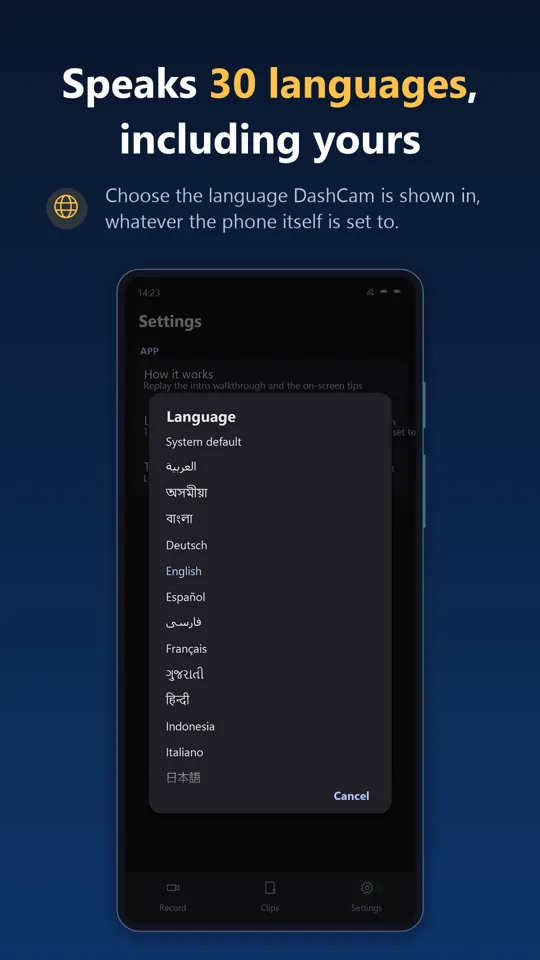
Languages
30
Parking mode
Not available

What it looks like on the road

How to set up an Android phone as a dash cam

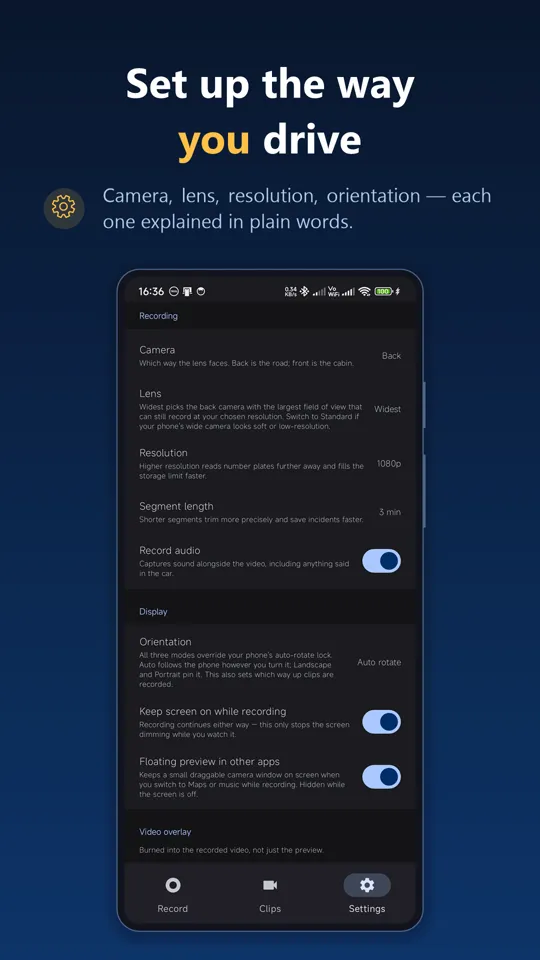
An old phone makes a genuinely good dash cam. It already has the camera, the GPS, the accelerometer and the storage that a purpose-built unit charges you for. What it does not have out of the box is loop recording, impact detection, or a camera that keeps running with the screen off — which is the part DashCam adds.

  1. Mount the phone facing the road A suction or vent mount at windscreen height, camera pointing forward. Landscape gives you more of the road per frame; portrait gives you more of the lane ahead. Both are supported, and the orientation can be pinned so a bump does not rotate it.
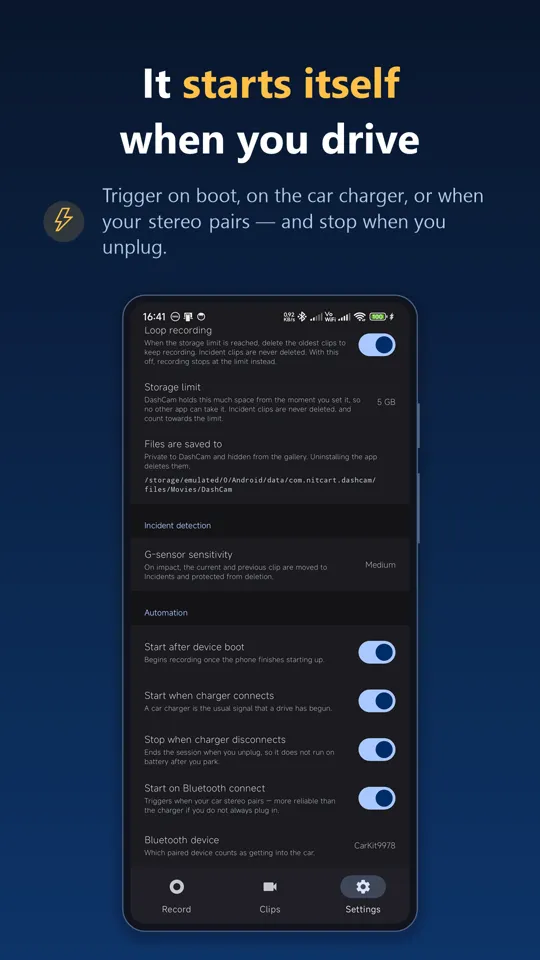
  2. Give it power Recording video with GPS running will outpace the battery on a long drive, so run a cable from the car's USB socket. DashCam can start recording the moment that charger connects and stop when you unplug, which means the dash cam turns itself on with the car.
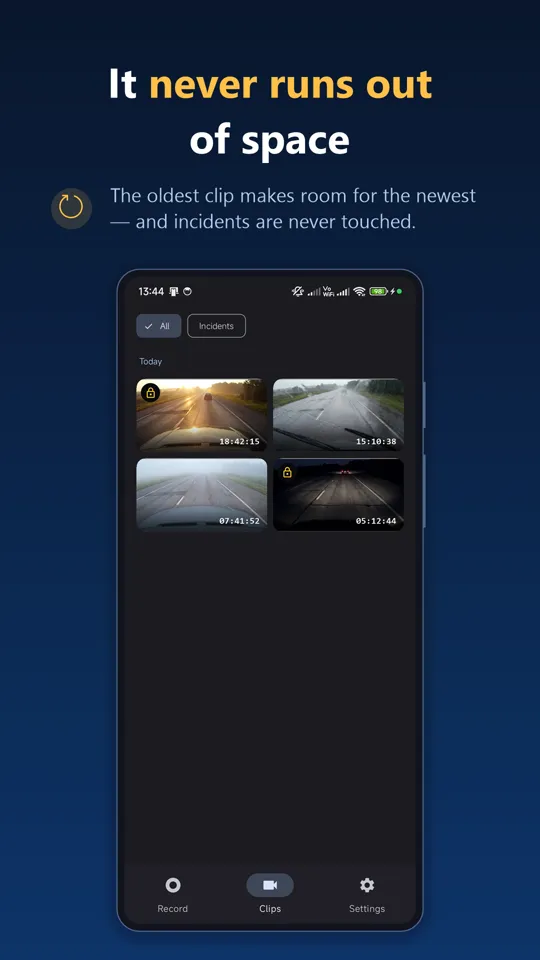
  3. Set a storage budget Tell the app how much space it may use. It writes in short segments and, once the budget is full, the oldest clip makes room for the newest — so it runs every day without ever needing to be cleared out. The space is reserved up front, so another app cannot take it mid-drive.
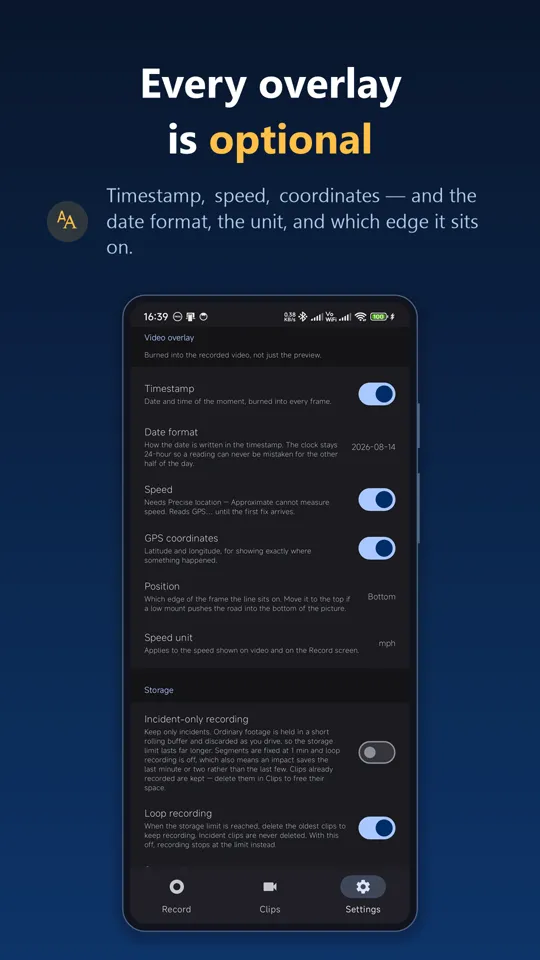
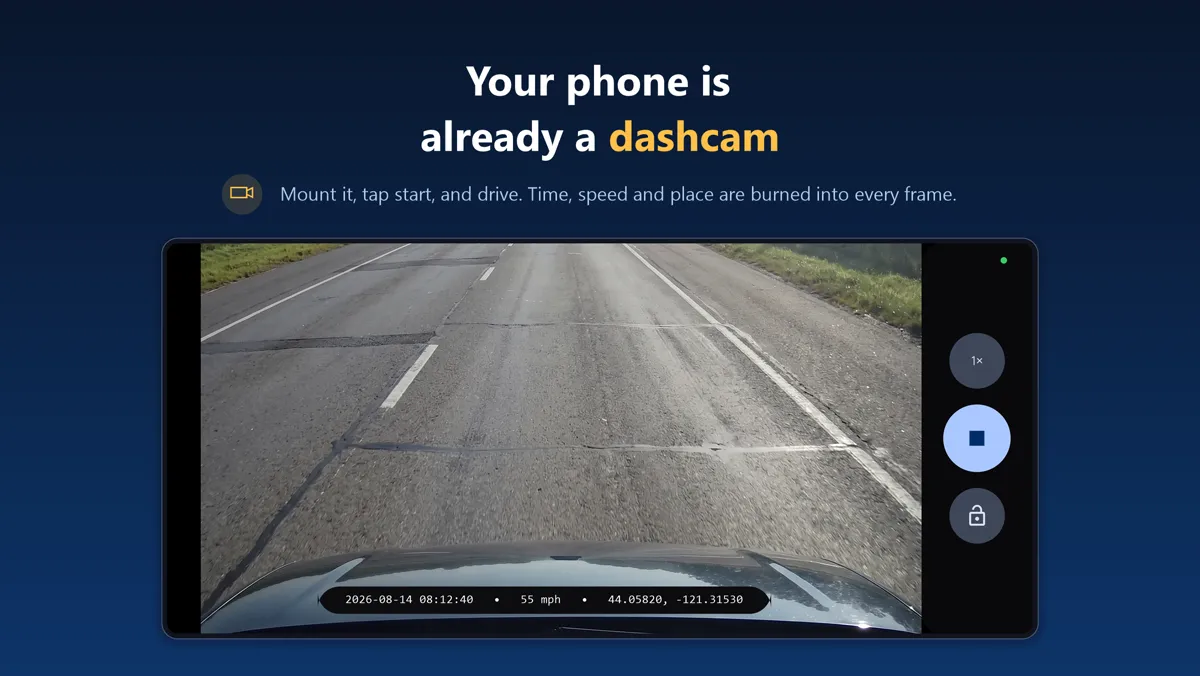
  4. Turn on the overlay you want burned in Date, time, speed and GPS coordinates can be written into the video file itself rather than drawn over the preview. This is what makes phone footage read as dash cam footage: the data is in the picture, not in a sidecar file that gets lost.
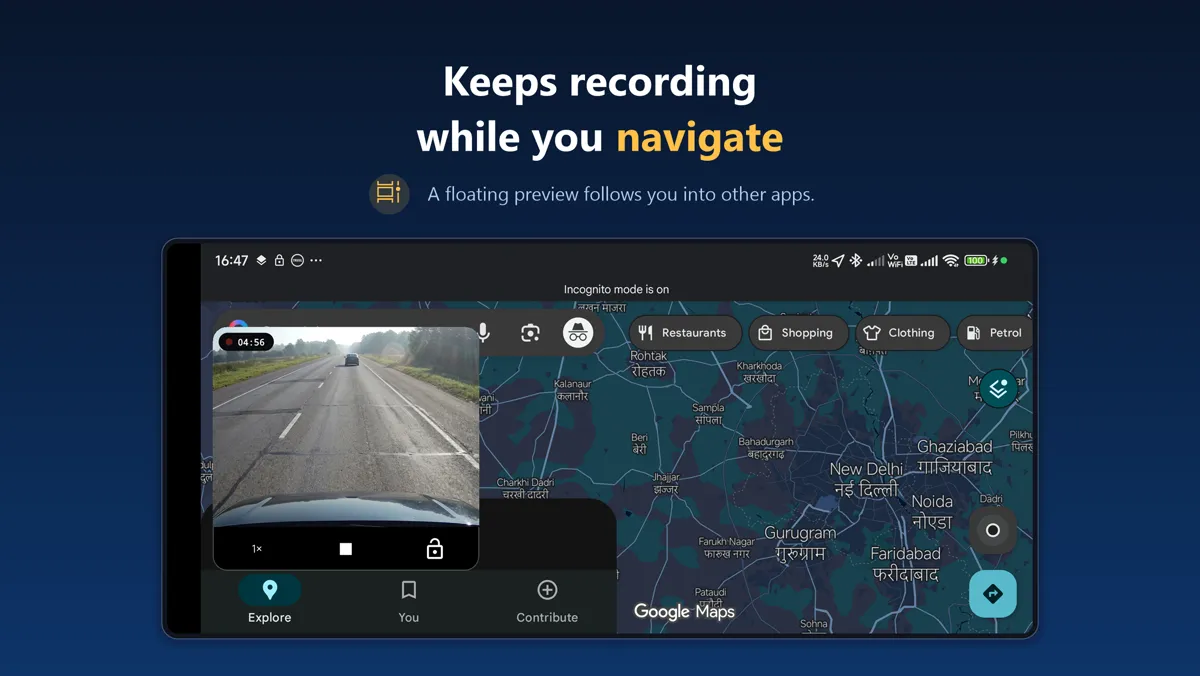
  5. Tap Record and put the phone down The camera keeps running with the screen off, and carries on while you use Maps or take a call. If the G-sensor detects an impact, that clip and the one before it are moved out of the loop and never deleted.
Auto-start on Android 14 and later. From Android 14, an app cannot start a camera service from the background. Granting DashCam "Display over other apps" is what lets the charger and Bluetooth triggers work completely hands-free. Without it you get a single "tap to start" notification instead — one tap, but it always works.

Built around the clip you actually need

Most of a dash cam's footage is worthless and one clip of it is not. Everything here is arranged around making sure the app is still holding that one clip weeks later.

Loop recording

Short segments inside a budget you set. Oldest deleted first, so it never fills the phone and never stops for lack of space.

Impact detection

The G-sensor measures deviation from a gravity baseline, so it is not fooled by mount angle. A knock saves the clip and the run-up to it.

Incidents are never deleted

Protected clips are held out of the loop permanently — not overwritten to make room, not trimmed under storage pressure.

Records with the screen off

The camera is bound to a foreground service, not to the UI, so the session survives the screen turning off and app switching.

Speed and GPS in the frame

Burned into the recorded file per frame, not overlaid on the preview. Choose which fields show, which edge, and km/h or mph.

Hands-free start

Begin recording when the car charger connects, when your stereo pairs over Bluetooth, or after the phone finishes booting.

Floating preview

A small draggable window so you can see and stop the recording without leaving Maps.

Works with no signal

Recording, retention, overlays and playback are entirely on-device. A tunnel or a dead zone changes nothing.

Questions worth asking first

Install DashCam, mount the phone on the windscreen facing the road, plug it into the car charger, set a storage budget in Settings and tap Record. You can also have recording start by itself when the charger connects, when the car stereo pairs over Bluetooth, or after the phone boots. The setup guide above covers each step.

For image quality, usually yes — a phone from the last several years will out-resolve a cheap dedicated unit. The real differences are heat and field of view. A phone in direct sun on a dashboard gets hot, and a phone lens is narrower than the wide-angle glass on a purpose-built dash cam, so you capture less of the adjacent lanes. DashCam picks the widest lens your phone has, which helps but does not fully close that gap.

Yes. The camera is bound to a foreground service rather than to the app's UI, with a wake lock held for the session, so recording continues with the screen off and while you are in another app. An ongoing notification with a Stop action is visible the whole time it is running.

No. You set a storage budget and the app stays inside it: once full, the oldest clip is deleted to make room for the newest. The space is also reserved from the moment you set it, so another app cannot claim it while you are driving. Incident clips are exempt from the loop and get their own ceiling so they cannot swallow the whole budget either.

The accelerometer compares movement against a low-pass gravity baseline, so mount angle and slow tilting do not trigger it but a sharp impact does. On a trigger, the previous segment is moved to protected storage immediately and the in-flight one is flagged and moved as soon as the encoder releases it — the run-up to an incident is usually the part that shows what happened. You can also tap Incident yourself, either during a drive or before setting off to protect the whole of the next one.

No. There is no account, no server and no cloud sync. Video, audio and location are processed on the device to produce the recording and its burned-in overlay, and none of them are transmitted. The app does hold the internet permission, because it shows ads — but the ad code has no access to your recordings, and everything the app records works with no connection at all. The privacy policy sets out exactly what the ad SDK collects.

It can, and it can be switched off in Settings. Worth checking your local law before you leave it on: rules on recording conversations inside a vehicle, and on filming in public, vary considerably between countries and in some places between regions.

Not currently. DashCam records while you are driving; it does not monitor the car while it is parked and unattended. Dual front-and-rear capture and cloud upload are also not implemented.

They are deleted. Clips are written to the app's own external files directory, which is why DashCam needs no storage permission at all — but that directory is removed with the app. Export anything you want to keep before uninstalling.

Yes. DashCam is free on Google Play and supported by ads. There are no in-app purchases and no account to create.

Other apps you might like

Put the old phone in the windscreen

Free on Google Play. No account, no sign-up, and your footage stays on the device.

Get it on Google Play